Every desk numbered, every seat picked from the phone.
Members choose a numbered desk in the app or scan the sticker on it, see the zone it sits in, and the seat is theirs until they leave.
The fight over the window seat
In a busy study cafe, the best desks go first and people drape a jacket over a chair to claim it for hours. New arrivals wander the floor looking for a free seat, and the quiet zone fills with people on calls because nothing tells them where they are sitting.
Staff cannot see which seats are actually taken, so they cannot direct anyone, and a member who stepped out for lunch comes back to find someone else at their desk.
How seats work in Timeo
Give each room a seat layout with numbered seats, then name groups of seats as zones, for example seats 14 to 21 as Shared Table. Members see the zone when they pick a seat, and it is printed on the seat QR codes.
Members can pick a seat before they arrive, when buying a pass or from their home screen, and it is held for the number of minutes you choose, then released. Once inside, the scan at the door holds their seat for the visit.
Print a QR sticker for each desk. A member who is checked in scans it to sit there; one who has not arrived yet can scan it to hold the seat, then scan in at the door. The sheet follows your layout, so new desks get a card the next time you print.
Set up your seats
- In More features (Settings > Features), turn Starter mode off so Rooms shows under Schedule, and switch on Timed visits (hours passes).
- Open Schedule > Rooms, open a room, go to Seat layout and lay out Numbered seats.
- In the Seat zones panel, type the Seats (for example 14-21) and a Zone name, press Apply to seats, then save the layout.
- Under Timed visits (hours passes), set Hold a picked seat for (minutes).
- Follow Print seat QR codes on the same card, print the sheet and stick one card on each desk.
What members see
In the app, members tap Pick a seat, choose a desk on the layout with its zone shown, and can tap Change seat later if they want to move. Their home screen shows the seat they are in.
At the desk, the QR card shows the seat number, the zone and what to do, in English and Chinese, with room for your own extra line such as a third language.
Questions
Can members reserve a seat before they arrive?
Yes. They can pick a seat when buying a pass or from their home screen, and it is held for the minutes you set under Hold a picked seat for (minutes). Set 0 to turn holds off.
Can I name areas like a quiet zone?
Yes. Seat zones name a group of seats, such as Window or Shared Table. Members see the zone when picking and it is printed on the QR card.
What does the QR sticker on a desk do?
A member who is checked in scans it to sit at that desk. One who is not in yet can scan it to hold the desk, then scan in at the door.
Can staff move someone to another seat?
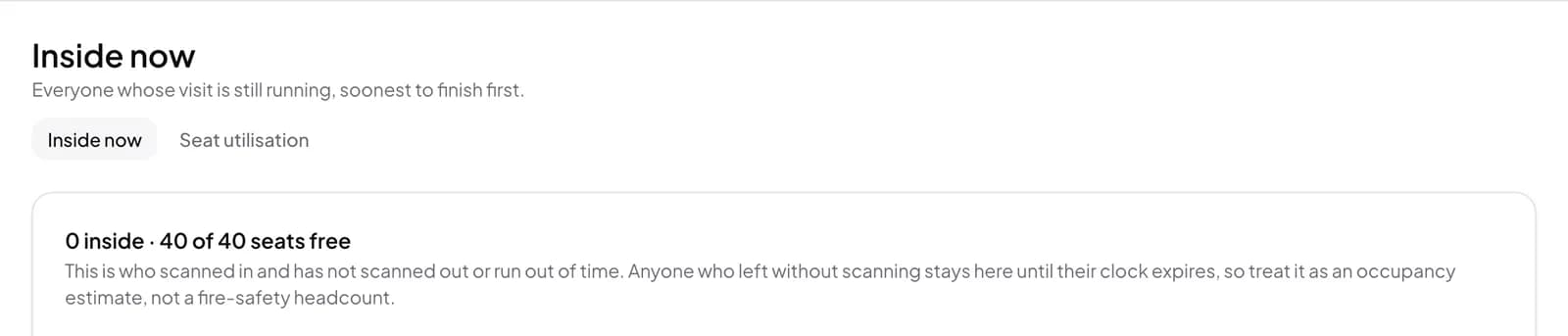
Yes. On the Inside now board, staff use Move seat on the member’s row.
Do I need to reprint the stickers when I add desks?
Only for the new desks. The seat QR sheet follows your seat layout, so new seats appear the next time you open it.