Salon online booking that respects every stylist’s column.
Clients choose the service, the stylist and a real free time from a link on Instagram, Google or your website, and the booking lands straight on your calendar.
Why salon bookings eat the front desk’s day
A full head of colour, a quick fringe trim and a gel refill all take different lengths of time, and each client wants a particular stylist. Taking those requests by DM means a back and forth of three or four messages per booking, often late at night, and a double booked chair when two people reply at once.
Colour work makes it harder still. While the colour develops, the stylist is standing free for 30 or 40 minutes, but a paper diary or a basic calendar shows the whole two hours as busy, so that gap is lost every single day.
How Timeo books a salon
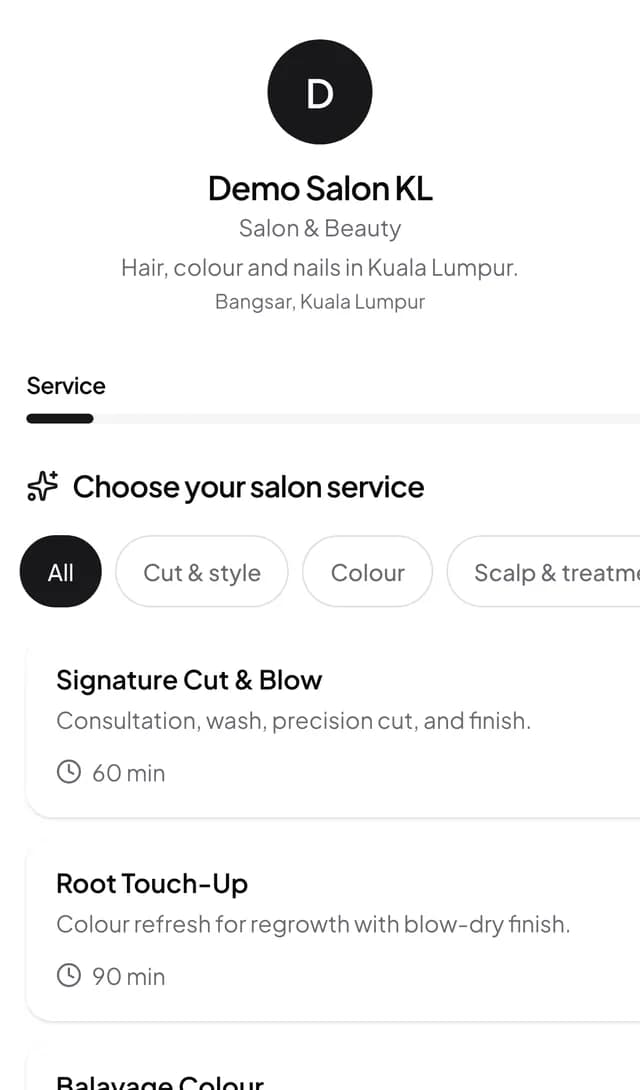
Your booking page shows your services, then your stylists, then only the times when that stylist is really free. Clients who do not mind can pick Any available stylist, and a client booking a cut and a treatment can use Add another service to book both in one visit.
Each stylist keeps their own working week and days off, so a stylist who only works Thursday to Sunday never shows up on a Monday. Walk ins are added on the same calendar, so online bookings can never land on top of them.
For colour, split the service around a processing gap: set the active time, the gap and the finishing time. During the gap the stylist is free and bookable for a quick service, and padding can block a few minutes for clean up without ever being offered as a start time.
Put online booking live
- Open Booking setup > Services, add each service with its duration and price, and under More options use Processing / gap time for colour services.
- Open Team > Hours and leave and set each stylist’s working days, using Day off for the days they do not work.
- Open Booking setup > Booking widget and copy the Direct link for Instagram and Google, or the Floating button or Inline button snippet for your website.
- If Booking widget is not in your menu, open More features (Settings > Features) and turn on Advanced booking tools.
What clients see
Clients go through Service, Stylist, Time and Details, then confirm. They only see times that fit the full length of what they chose, and the stylist’s name stays on the booking so regulars always get the person they trust.
Once booked, clients get a confirmation, and if you link your WhatsApp the reminder carries a link to manage the booking, so a client who needs to move the appointment can do it without calling.
Questions
Can clients choose their stylist?
Yes. They pick a stylist, or Any available stylist, and only see times when that stylist is free for the whole service.
Can a stylist take another client while colour is processing?
Yes. Split the service around a processing gap and the stylist becomes bookable during the gap, while the client stays booked for the full visit.
Can a client book two services in one visit?
Yes. Add another service lets the client book, for example, a cut and a treatment together.
Where do I put the booking link?
Anywhere you like: your Instagram bio, your Google Business Profile, WhatsApp, or your website with the floating or inline button.
Do walk ins and phone bookings go on the same calendar?
Yes. Staff add them on the Appointments calendar, so online clients never see a time that is already taken.
More for hair, beauty and nail salons
- Timeo for hair, beauty and nail salons
- WhatsApp reminders
- Booking deposits
- Salon POS and checkout
- Stylist commissions
- Client records and colour formulas
- Gift cards
- Treatment packages
- Loyalty points
- Best salon booking software, compared
- Best salon booking systems in Malaysia, compared
- How salons use Timeo to stop no shows